Notifications iOS
Configure Push and In-app notifications.
If you want to configure the notifications for Android - please refer here
Notifications can be sent to your users when:
- You reply to an issue submitted by them.
- You send a Proactive Engagement notification targeting the user
Setting push notifications involves configuring both the Helpshift admin dashboard as well as the client app.
Configure push notifications in the Helpshift admin dashboard
Configure Helpshift's push notification service in the Helpshift admin interface
To enable the Helpshift system to send push notifications to your users you will have to add iOS as a platform in your app (if you have not added already). And then click on the push notifications option.
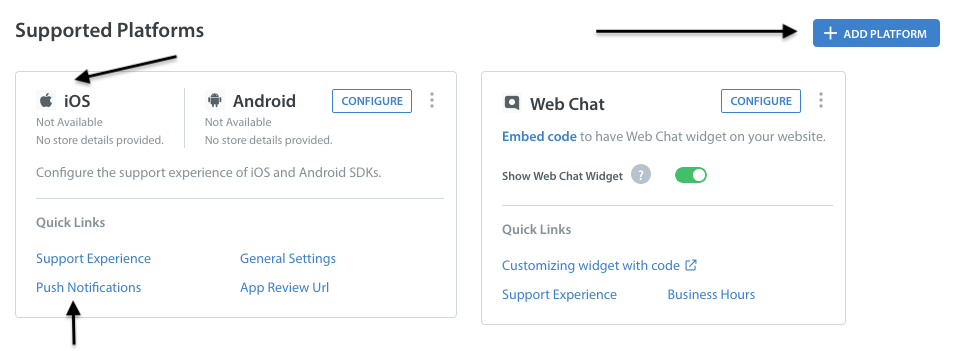
In order to send push notifications to all iOS mobile apps and games, you need to establish an authenticated connection with the Apple Push Notification Servers (APNs). There are two methods you can use to authenticate:
- The newer token-based method (.p8)
- The older certificate-based method (.p12)
Token-based method (.p8)
The token-based method is faster because it offers a stateless way to communicate with APNs. It doesn't require APNs to look up the certificate or any other information related to the provider server.
We now support the newer token-based .p8 key method, which allows you to send notifications to all your iOS apps and games using a single key. You can generate your .p8 key through your Apple developer account, as explained here.
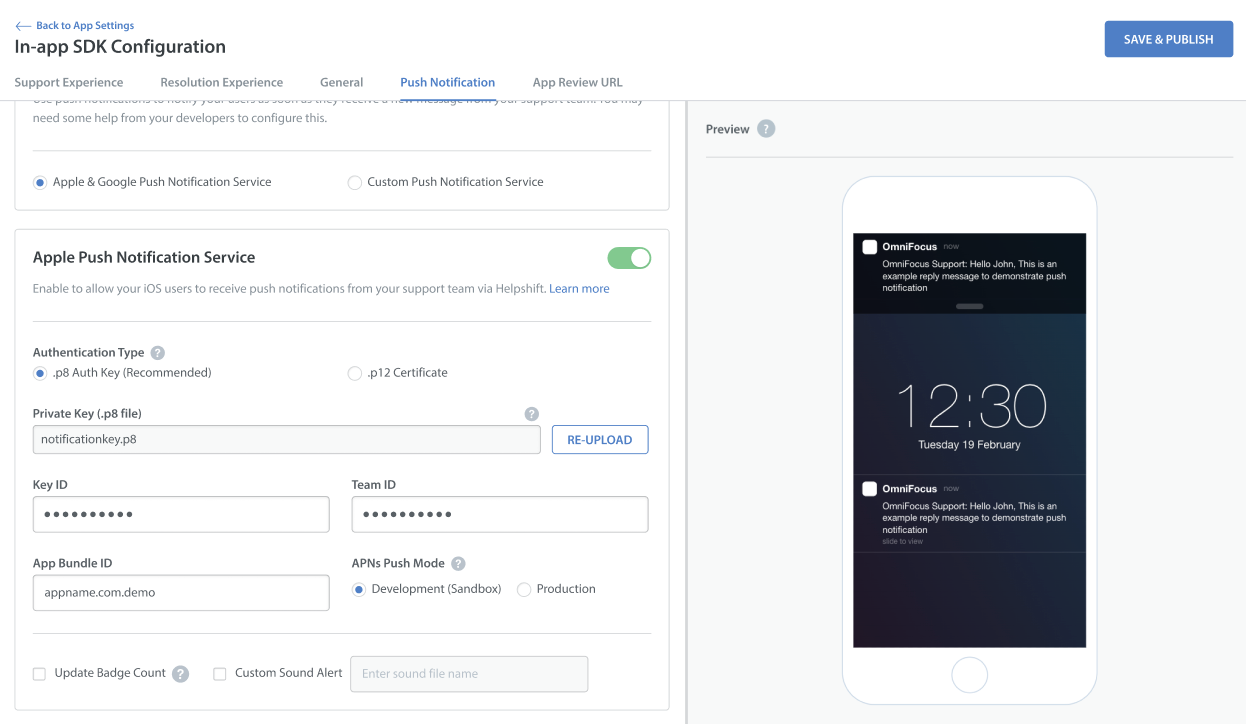
Here are the steps to configure iOS push notifications using .p8 keys:
Go to Settings, then navigate to the APP SETTINGS section to choose the app you want to configure.
On the App settings page, click on the CONFIGURE option next to In-app SDK.
On the In-app SDK Configuration page, navigate to the Push Notification section.
Enable the toggle for Apple Push Notification Service if not enabled. The app selects the p8 key authentication type by default when you enable the toggle for the first time.
Upload the p8 key and fill in all the required details.
Select the APNs push mode (Development/Production).
Click on Save & Publish to save the changes.
Certificate-based method (.p12)
You need to generate certificates for APNS on Apple's portal that you can later provide to Helpshift. This lets Helpshift send push notifications to your users. Apple has moved away from old type of certificates to Apple Push Notification service SSL. There is another option to create Apple Push Notification Authentication Key, but Helpshift does not support this option yet. It's also possible that you still have the old type of certificate that has not yet expired, this is also supported by Helpshift.
Apple provides two variations of Apple Push Notification service SSL
- Apple Push Notification service SSL (Sandbox)
- Apple Push Notification service SSL (Sandbox & Production)
After creating your certificate, download it. Double click on it to import it to the Keychain Access application. In the Keychain Access application, right click on the certificate that was just added, and click export it in .p12 format. Please provide a password while exporting the certificate since we do not accept empty passwords. (Note that if your development private key is not present in Keychain Access, you will not be able to export it in .p12 format.)
After export, login and upload the .p12 file in your app in the Helpshift admin panel. Provide the same password you used while exporting to .p12 format.
Please note that you need to use the same bundle identifier in the app as the one you used to create the APNS certificate.
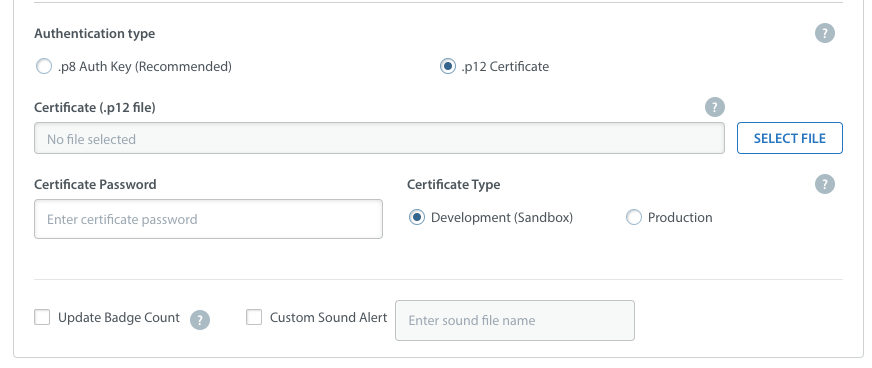
You can configure whether to send a badge or not, and sound alerts if you provided custom sounds bundled with your app to handle notifications. Save it and you're all set.
Development (Sandbox) mode vs. Production mode
When you build and run your app from Xcode, it is in development (Sandbox) mode. To test push notifications from Helpshift in this mode make sure you choose 'Development Mode' while uploading either of the above two certificate types.
When you publish your app and download from App Store, your app is in Production mode. To test push notifications from Helpshift in production mode make sure you choose 'Production Mode' while uploading a certificate of 'Apple Push Notification service SSL (Sandbox & Production)' type. Sandbox mode certificate will not work on a production environment.
We do not support using the same certificate for both sandbox and production apps. In these cases we recommend you create two separate apps on our dashboard, one in 'Production mode' and the other in 'Development mode'. While testing please use the credentials of the developement mode app. When you are ready to publish, please replace the credentials with those of the production level app.
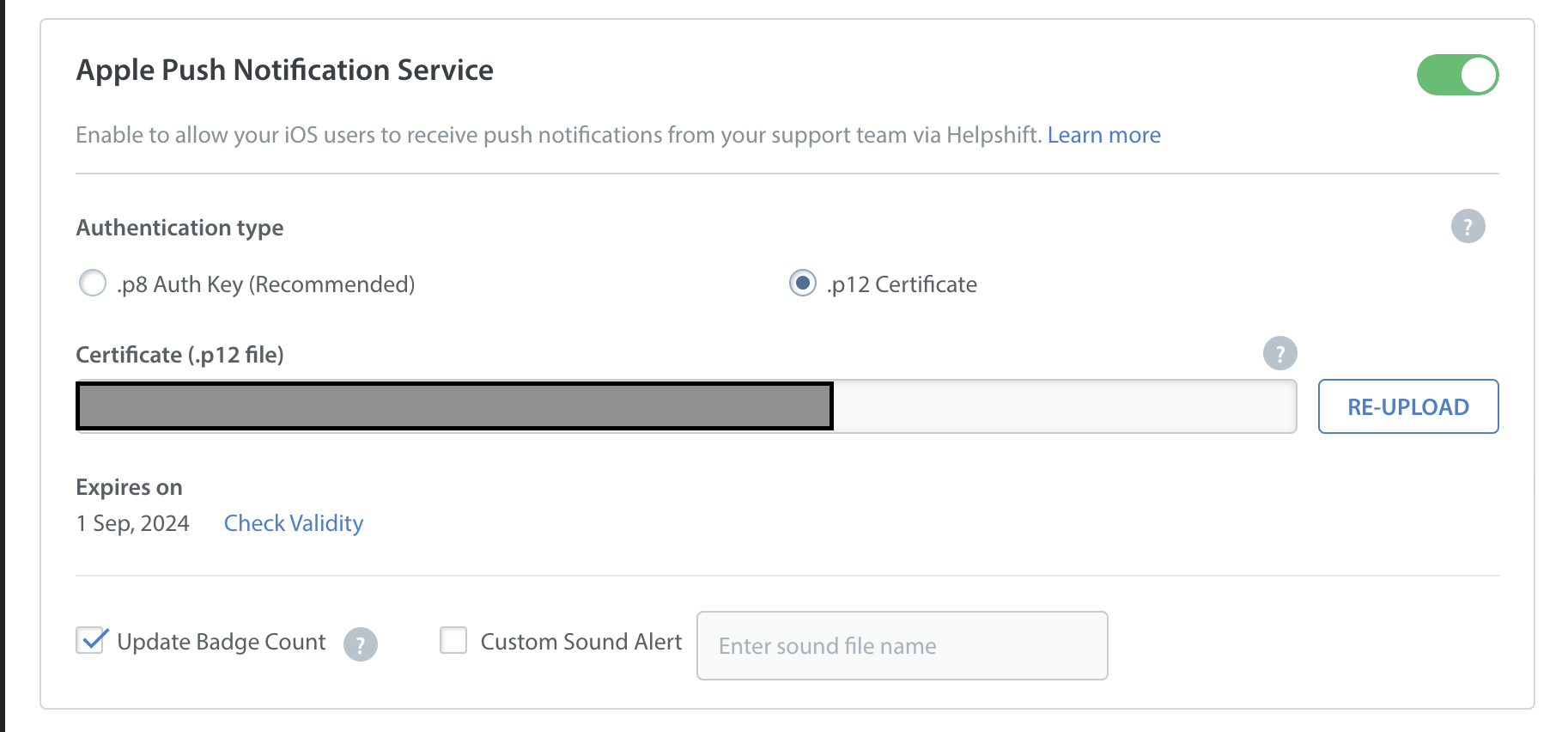
Your Push Certificate has an expiry date, as indicated in the below screenshot. Helpshift will not send you a reminder when your Push Certificate expires, so please make sure that your developer keeps a tab on the expiry date to reupload the Push Certificate.
Configure the Helpshift Unreal SDK to handle notifications
After you have configured the push notifications in the Helpshift console, you will need to add additional setup in the project, too. First of all, you should enable the Use Push Notifications toggle in the Project Settings:
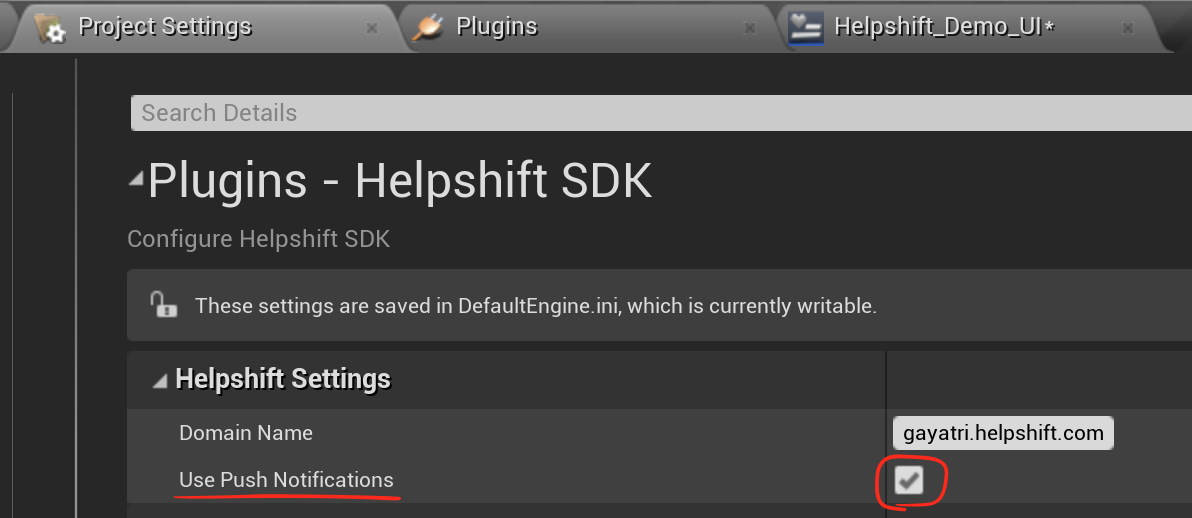
When push is not configured, Helpshift SDK shows out-of-the-box "in-app notifications" for every message sent by Agents/Bots.
You should call registerDeviceToken API only after you have configured the Helpshift dashboard for push notifications. Calling the RegisterPushTokenIos() API without configuring the Helpshift dashboard will stop showing out-of-the-box "in-app notifications" for the end users.
Request notification permission and register your app for push
For Helpshift SDK to work with the Helpshift push notification service
you will need to invoke the FIOSPlatformMisc::RegisterForRemoteNotifications() Unreal method. This method handles requesting the user's permission to receive push notifications and registers the app for remote notifications. You should call this method at an appropriate point in your app's lifecycle, such as your GameInstance's OnStart() method.
RegisterPushTokenIos() API call inside the application delegate method
application:didRegisterForRemoteNotificationsWithDeviceToken: system method or FCoreDelegates::ApplicationRegisteredForRemoteNotificationsDelegate Unreal delegate, depending on how your game is structured. If using Unreal delegate, the best place to add this would be in the GameInstance::OnStart() method of your game instance class.
void UHelpshiftDemoGameInstance::OnStart()
{
    Super::OnStart();

#if PLATFORM_IOS
    // Register for remote push notifications. This internally calls the system
    // API that presents push permission prompt to the user.
    FIOSPlatformMisc::RegisterForRemoteNotifications();
#endif
}
Pass registered push token to Helpshift
For Helpshift SDK to work with the Helpshift push notification service, you will need to invoke the RegisterPushTokenIos() API call inside FCoreDelegates::ApplicationRegisteredForRemoteNotificationsDelegate Unreal delegate.
void UHelpshiftDemoGameInstance::OnStart()
{
    Super::OnStart();

#if PLATFORM_IOS
    // Listen for push token received delegate.
    FCoreDelegates::ApplicationRegisteredForRemoteNotificationsDelegate.AddLambda([](const TArray<uint8>& Token) {
        UHelpshiftLibrary::RegisterPushTokenIos(Token);
    });

    // Register for remote push notifications. This internally calls the system
    // API that presents push permission prompt to the user.
    FIOSPlatformMisc::RegisterForRemoteNotifications();
#endif
}
Implement push delegates
To respond to the delivery of notifications, you must implement a delegate for the shared UNUserNotificationCenter object. Your delegate object must conform to the UNUserNotificationCenterDelegate protocol, which the notification center uses to deliver notification information to your app:
- If a notification arrives while your app is in the foreground, UNUserNotificationCenterDelegate's
userNotificationCenter:willPresentNotification:withCompletionHandler:is called. - If a notification arrives while your app is in background or terminated, the system does not call the
userNotificationCenter:willPresentNotification:withCompletionHandler:method. Instead, the system alerts the user according to the information in the notification itself. - When the user selects an action from the notification interface, the system notifies your app of the user's choice. To receive responses, your delegate object must implement the
userNotificationCenter:didReceiveNotificationResponse:withCompletionHandler:method.
In both cases, you should check the "origin" field of the notification dictionary and call the corresponding SDK APIs (mentioned below) if the origin is "helpshift". The Helpshift SDK will handle the notification transparently depending on it's payload:
Example usage:
- For notifications sent in response to agent replies on user's support conversations, the SDK will open the corresponding conversation.
- For proactive engagement notifications, the SDK will perform the dashboard configured action.
Push delegate when app is in foreground
For the userNotificationCenter:willPresentNotification:withCompletionHandler: delegate, invoke the handleForegroundNotification:withCompletionHandler: SDK API -
- (void) userNotificationCenter:(UNUserNotificationCenter *)center
        willPresentNotification:(UNNotification *)notification
          withCompletionHandler:(void (^)(UNNotificationPresentationOptions)) completionHandler {
    NSDictionary *userInfo = notification.request.content.userInfo;
    if([@"helpshift" isEqualToString:userInfo[@"origin"]]) {
        [Helpshift handleForegroundNotification:userInfo withCompletionHandler:completionHandler];
    } else {
        completionHandler(UNNotificationPresentationOptionBanner |
                          UNNotificationPresentationOptionSound  |
                          UNNotificationPresentationOptionList);
    }
}
Push delegate when app is in background or not running
For the userNotificationCenter:didReceiveNotificationResponse:withCompletionHandler delegate, invoke the handleBackgroundNotificationClick:withCompletionHandler: SDK API -
- (void) userNotificationCenter:(UNUserNotificationCenter *)center
 didReceiveNotificationResponse:(UNNotificationResponse *)response
          withCompletionHandler:(void (^)(void))completionHandler {
    NSDictionary *userInfo = response.notification.request.content.userInfo;
    if([@"helpshift" isEqualToString:userInfo[@"origin"]]) {
        [Helpshift handleBackgroundNotificationClick:userInfo withCompletionHandler:completionHandler];
    } else {
        completionHandler();
    }
    completionHandler();
}
Configure NotificationService extension
Your app only needs to configure the NotificationService extension if you are using Proactive Engagement feature. For support notifications, you can skip this configuration.
If you are using Helpshift's Proactive Engagement feature, you will need to add a NotificationService extension to your app. This extension lets the app intercept the notification and modify it's payload before iOS system posts the notification in system tray. For more details on what this service extension does and how to configure it in your app, you can refer the Apple documentation.
Helpshift uses this extension to download images to display in the push notification. If your app already has a NotificationService extension, you can re-use it for handling Helpshift notifications. In the didReceiveNotificationRequest:withContentHandler: method of your notification service, call the corresponding Helpshift API -
- (void) didReceiveNotificationRequest:(UNNotificationRequest *)request
                    withContentHandler:(void (^)(UNNotificationContent *content))contentHandler {
    NSString *origin = request.content.userInfo[@"origin"];
    if([@"helpshift" isEqualToString:origin]) {
        [Helpshift handleBackgroundNotification:request
                           withContentHandler:contentHandler];
    } else {
        contentHandler(request.content);
    }
}
In-app notifications
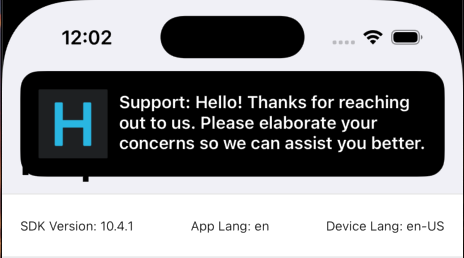
In-app notifications, unlike push notifications, appear within your app when it is in use by the user.
These notifications are sent when an agent replies to a customer's issue. Your customers can click on these banners to go straight into the conversation screen.
Configuring In-app notifications
The Helpshift Init call supports flags for configuring SDK behaviour.
Currently we support one flag i.e HelpshiftConfigEnableInAppNotificationsKey.
Enabling/Disabling In-app notifications
| Flag | HelpshiftConfigEnableInAppNotificationsKey |
| Values | true / false |
| Default | true |
If you do not want the in-app notifications support provided by the
Helpshift SDK, please set this flag to false. The default value of this
flag is true i.e in-app notifications will be enabled.
Pausing In-app notifications
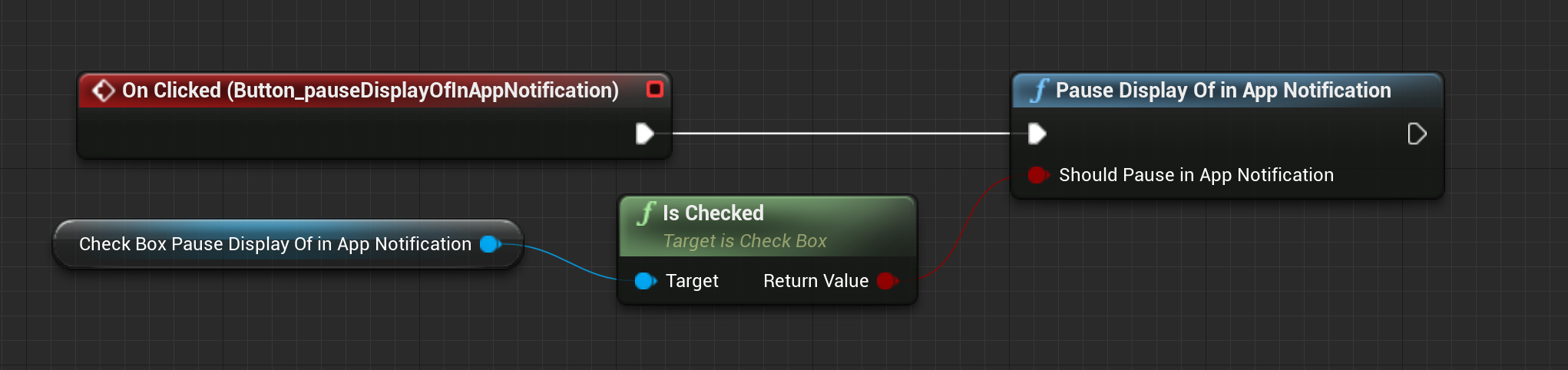
If you have enabled in-app notifications, use the API PauseDisplayOfInAppNotification() to pause/resume the notifications. When true is passed to this method, display of in-app notifications is paused even if they arrive. When you pass false, the in-app notifications start displaying.
Showing notification count when replies are sent to the user
To fetch unread messages count from the server you can call RequestUnreadMessageCount(bool FetchFromServer); API. This API will return unread messages count via delegate. Based on the value of FetchFromServer, the locally stored count will be returned if FetchFromServer is false else from the server by fetching remotely when FetchFromServer is true. An example use of this count is to update the badge count to indicate unread messsages. Please note that before calling this method, you need to set the listener for Helpshift events by calling the BindEventDelegate(const FHelpshiftEventDelegate& Callback) API.
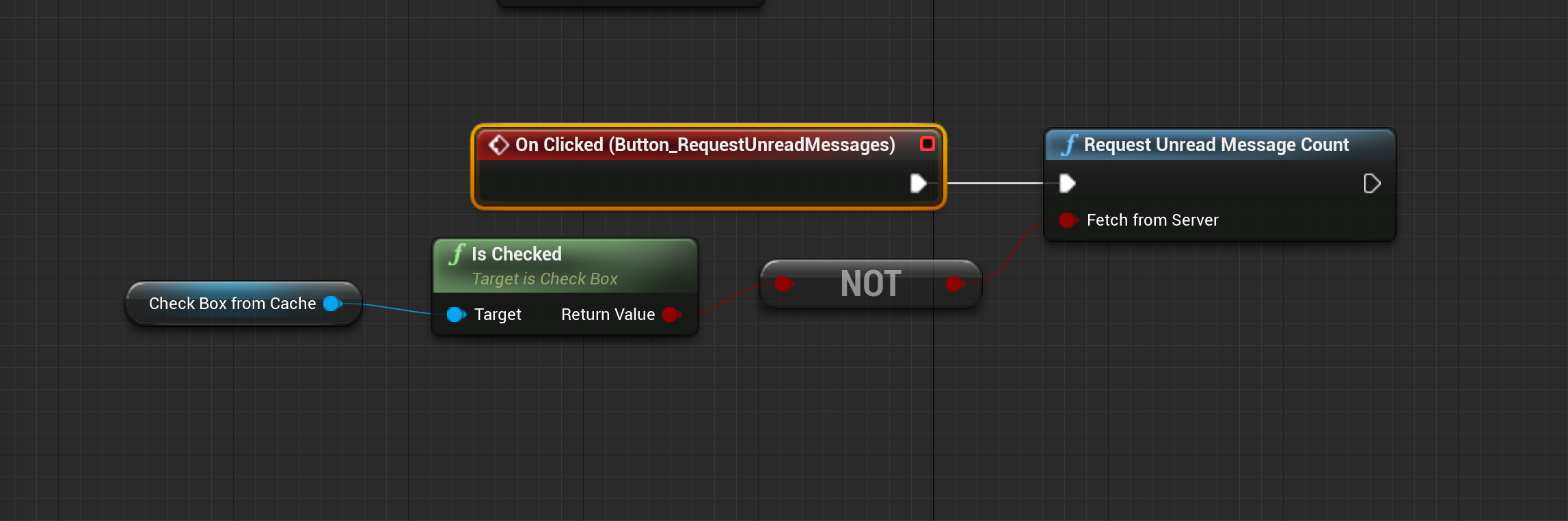
When you call this API, you receive the unread count in your event delegate HelpshiftEventReceivedUnreadMessageCount()
Keys in event data: HelpshiftEventDataMessageCount (int), HelpshiftEventDataMessageCountFromCache (int)
- The notification count is fetched via this API from the SDK cache and Helpshift's servers (indicated by the value of
HelpshiftEventDataMessageCountFromCache (int)in the example above). However, the count from Helpshift’s servers is rate limited and it returns the value only if a subsequent call is made to the API, after the reset timeout or when the user just closes the chat screen (whichever is earlier). For an active issue, the reset timeout is 1 minute and 5 minutes for inactive issues.